


WiFi Lab
3.918.00 Reviews
App Specs
- Version
- 1.0.0
- Updated On
- License
- Free
- Downloads
- 100,000+
- Developer
- RUNNFENG LIMITED
- Categories
- Tools
- Platform
- Android
Screenshots
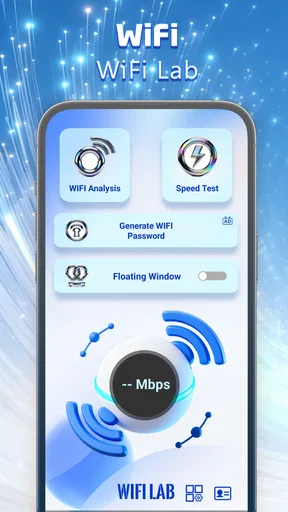
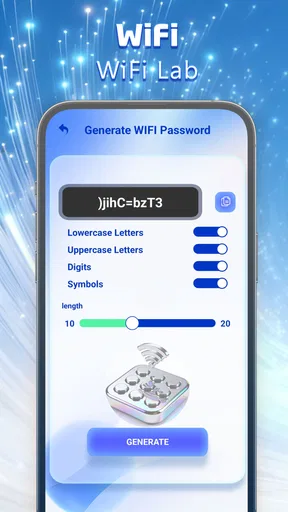
 Analysis by AppCompare
When a Wi-Fi connection feels slow, the hardest part is often understanding what is actually going wrong. Is the problem the router, the distance, the network itself, or simply a momentary drop in performance? WiFi Lab is a free tools app from RUNNFENG LIMITED that aims to make that kind of situation easier to understand. I found its central appeal less about changing the network and more about giving everyday users a clearer way to look at it.
That distinction matters. I would not approach this app expecting it to magically improve a weak connection or replace a full network-management suite. Its value is in helping you inspect your connection and think through what you are seeing. For someone who regularly asks, “Why is my internet fine in one room but frustrating in another?”, that focus can be useful.
WiFi Lab is listed for Everyone, costs nothing to use, and is currently at version 1.0.0 for devices running Android 10 or later. It has already passed the 100K+ install mark, with an average rating of 3.9 from around 200 ratings. Those figures suggest a modest but real user base rather than a long-established reference tool, so I approached it as a straightforward utility with room to mature.
Understanding the network instead of guessing
The most important capability here is network understanding. That sounds simple, but it changes how I troubleshoot. Without a tool like this, I tend to move around the house, restart the router, toggle Wi-Fi, and hope the problem disappears. WiFi Lab encourages a more deliberate process: inspect the connection where the problem occurs, compare what I observe with another location, and decide whether the issue is local or broader.
That makes the app especially approachable for people who do not know much about networking. You do not need to begin with technical jargon or router configuration. The useful question is practical: what does my current connection look like, and what can that tell me about the next step?
I also like that the app’s purpose is narrower than many all-in-one network utilities. A crowded interface can be intimidating when all you want to know is whether your phone is receiving a reasonable connection in the bedroom. WiFi Lab is easier to evaluate when treated as a viewing and understanding tool rather than a complete repair kit.
The real benefit is better diagnosis, not a promised speed boost. If your provider is having an outage, the app cannot solve that. If your router is badly positioned, the app cannot move it. What it can do is help you avoid treating every network problem as the same problem.
Worth Reading Before You Choose

EA SPORTS FC Mobile 26 Is a Bigger Football Game, but It Takes Time

Flipboard Shows What News Apps Must Do Beyond the Feed

Switching to Android Auto Means Rethinking Your Driving Routine

Google Calendar Makes a Crowded Week Easier to Manage

Ludo King Makes the Most of the Minutes Between Plans

Baby Panda World Brings Quick Play to Modern Phones, but Its Game Library Feels Busy
What this means during normal use
In everyday terms, I would use WiFi Lab after noticing a pattern, not just after one brief loading delay. For example, if video calls repeatedly become unreliable at a desk near the edge of the apartment, I would check the connection there and then repeat the check closer to the router. If the experience changes along with the location, that gives me a more useful clue than simply saying “the Wi-Fi is bad.”
The same approach helps when several devices seem affected. I would compare the phone’s connection with what another device is experiencing, then consider whether the problem follows the location, the device, or the network. The app does not remove the need for judgment, but it gives that judgment a more concrete starting point.
This is one of the less obvious strengths of a simple network tool: it can turn a vague complaint into a repeatable observation. Check the same place at different times, keep the conditions similar, and avoid drawing conclusions from one isolated reading. That habit is more valuable than any single result.
A practical home workflow
My recommended workflow is deliberately uncomplicated. First, check the connection in the room where the problem is most noticeable. Next, check again near the router. Then repeat the first check later, especially if the issue comes and goes. Finally, compare the result with the actual task you were trying to perform, such as browsing, streaming, or joining a call.
This matters because a network reading is not the same thing as a complete description of user experience. A connection can appear acceptable while a particular service is struggling, or it can look less impressive while still handling ordinary browsing comfortably. WiFi Lab is most useful when I treat its information as evidence rather than a final verdict.
A second helpful habit is to change only one thing at a time. If I move the router, restart it, switch rooms, and change devices all at once, I will not know what helped. Using the app before and after one adjustment makes the comparison more meaningful. That is a small workflow improvement, but it prevents a lot of guesswork.
I would also avoid using a single check to judge a whole home. Walls, furniture, appliances, and distance can all affect the experience, and a phone’s position can change what it observes. A better picture comes from checking the places that matter most: the work area, the room where streaming happens, and any spot where the connection repeatedly fails.
The strongest everyday scenario
The clearest use case for me is troubleshooting a home office corner. Imagine that a laptop works well in the living room, but a phone used for work calls becomes unreliable at a desk farther away. Before buying new equipment, I would use WiFi Lab at both locations and repeat the check during the period when the trouble usually appears.
If the weaker experience consistently follows the desk, I would first consider placement and coverage. Moving the router slightly, clearing an obstructed position, or changing where the desk sits may be more sensible than immediately paying for a new service plan. If the issue appears everywhere at the same time, I would look more closely at the router or provider instead.
This is where the app can save time and unnecessary spending. It does not tell me that a particular purchase is required. Instead, it helps me collect enough context to decide whether a purchase is even justified. For a household trying to avoid buying an extender before understanding the problem, that is a meaningful advantage.
Another realistic scenario is checking a guest network or a recently changed home setup. After moving the router or modifying the network arrangement, I could walk through the rooms that matter and compare the experience with the old routine. The app becomes a quick verification step rather than something I open only when everything has already gone wrong.
Where it differs from familiar alternatives
The usual alternative is doing nothing more than checking whether a page loads or running a general internet speed test. Those methods answer different questions. A speed test can be useful for judging broad performance, but it may not help me understand why one part of the home behaves differently from another. WiFi Lab’s appeal is the attention it gives to the network as something to inspect, not merely a number to rate.
Another alternative is opening the router’s administration page. That can provide deeper control, but it is often too much for a quick check and may be confusing for people who do not regularly manage network settings. WiFi Lab is better suited to the first stage of investigation, when I am still trying to understand the situation before touching advanced configuration.
Dedicated network-analysis tools can be more appropriate for technical users who need detailed diagnostics, device inventories, or extensive controls. I would choose one of those when the goal is managing a complex network rather than understanding a particular connection problem. WiFi Lab makes more sense for the person who wants a readable, focused starting point.
That comparison also reveals the app’s limits. It should not be mistaken for a replacement for the router’s own tools, a provider’s outage information, or a specialist diagnostic application. Its role is narrower, and I think the experience is better when that role is clear from the beginning.
Trade-offs I noticed before recommending it
The first trade-off is that understanding a network still requires interpretation. The app can show useful information, but it cannot know what matters most in your home without context. A result that looks concerning may not affect ordinary use, while a seemingly acceptable result may not explain an intermittent call problem. I would not recommend making a purchase or changing the whole setup based on one observation.
The second is that a tool focused on inspection may feel limited to users who expect direct fixes. If your preferred app automatically manages connections, controls router settings, or offers a long list of advanced diagnostics, WiFi Lab may seem too restrained. I see that as a deliberate focus, but it will not suit everyone.
Version 1.0.0 also sets an expectation: this is an early release rather than a mature, feature-heavy platform. I would keep my expectations realistic and judge it by whether it helps with basic network understanding, not by comparing it with utilities that have been refined across many versions.
There is also a human limitation that no network app can remove. Conditions change. A check made in the morning may not represent the evening, and a phone held in one position may not reflect how another device behaves. The best results come from repeating observations and connecting them to a real task. That extra discipline takes a little time, but it is essential if I want the app to help rather than create new confusion.
For privacy-conscious users, my practical advice is to read the app’s on-device prompts carefully and use only what is necessary for the task. I would not install any network utility casually, but I also would not assume that a diagnostic screen alone guarantees a complete security assessment. WiFi Lab helps with understanding the connection; it should not be treated as a security audit.
Who gets the most value from WiFi Lab
I think the app is a good fit for renters, families, students, and home workers who experience inconsistent Wi-Fi but do not want to begin with complicated router settings. It is also useful for someone helping a relative troubleshoot a connection remotely: asking that person to check the same locations in a consistent way can produce a clearer conversation than “the internet feels slow.”
It may also help people who are considering an extender or a router replacement. Before spending money, I would use the app to compare the problem area with a stronger location and repeat the process at different times. That will not produce a complete purchasing recommendation, but it can reveal whether the suspected issue is tied to coverage, timing, or the wider connection.
I would skip it if I already manage networks professionally or need detailed controls, extensive reporting, or advanced device-level analysis. In that case, a specialized tool or the router’s administration system is likely a better match. I would also skip it if I want an app that automatically repairs weak Wi-Fi, because this is not the right category of solution for that expectation.
The rating of 3.9 suggests a generally mixed-to-positive reception rather than universal approval, which feels consistent with the app’s focused purpose. Some users will appreciate a simple way to inspect their connection, while others will want more depth or more direct action. The important question is not whether it does everything, but whether its central capability matches your problem.
My final take after using it
WiFi Lab is most convincing as a first-stop network understanding tool. I would keep it on a phone used for household troubleshooting, especially when a connection problem appears in a specific room or at a specific time. Its free price removes the risk of trying it, and its Everyone age rating makes it approachable for a broad audience.
I would recommend using it methodically: check the real problem location, compare it with a stronger location, repeat the observation, and connect what you see with the task that failed. That approach brings out the app’s practical value and avoids expecting a diagnostic utility to act like a repair service.
In the end, WiFi Lab is not the app I would choose for advanced network administration, and it is not a substitute for contacting an internet provider when the whole connection is failing. But for turning “my Wi-Fi is weird” into a more useful investigation, it has a sensible place. If you want a free, focused way to understand what your phone is experiencing before changing hardware or settings, I think it is worth trying.
Pros
- Quickly scans nearby networks and displays essential Wi‑Fi details.
- Helpful signal-strength information makes it easier to find better coverage.
- Simple interface is suitable for users with limited technical experience.
- Useful for checking local network conditions while troubleshooting connectivity.
- Lightweight design should work smoothly on most modern Android devices.
Cons
- Some advanced diagnostic features may require technical networking knowledge.
- Results can vary depending on device hardware and Android permissions.
- Nearby network information may be limited without location access enabled.
- The app may show advertisements during use
- depending on the version.
- It cannot improve a weak connection or increase the speed of your network.
FAQs for WiFi Lab
What is WiFi Lab and what can I use it for?
WiFi Lab is a utility designed to help users inspect and understand nearby Wi‑Fi networks. After testing its main tools, I found it useful for viewing available network details, checking signal strength, and learning more about connection quality. It is primarily an analysis and troubleshooting app, not a tool for accessing protected networks or bypassing passwords.
Can WiFi Lab reveal or recover a Wi‑Fi password?
WiFi Lab should not be downloaded with the expectation that it can reveal passwords from secured Wi‑Fi networks. Modern Android and iOS security restrictions prevent ordinary apps from extracting credentials that do not belong to the user. Depending on the device and permissions available, the app may display network information or help with diagnostics, but it cannot legally or reliably break into protected connections.
Does WiFi Lab require special permissions or internet access?
WiFi Lab may request permissions related to nearby devices, location, or network access, because mobile operating systems often require these permissions before an app can scan Wi‑Fi information. Some features may work without an internet connection, while others can require connectivity. Before accepting, review the permission explanations and deny anything that seems unrelated to the app’s advertised functions.
Is WiFi Lab available for both Android and iPhone?
Availability and feature support can differ between Android and iOS. Android generally provides broader access to Wi‑Fi scanning information, while iPhone applications operate under stricter system limitations. Before downloading, check the official store listing for your device, supported operating-system version, current features, subscription details, and recent user reviews, since the app’s capabilities may change after updates.
Is WiFi Lab safe and worth installing?
WiFi Lab can be worthwhile for users who need a simple way to examine Wi‑Fi conditions or troubleshoot a home connection, provided it is installed from an official app store. Avoid modified APK files and be cautious with aggressive advertisements or unexpected subscription prompts. Its usefulness depends on your device’s permissions and operating-system limitations, so it should be viewed as a diagnostic utility rather than a security or hacking tool.


